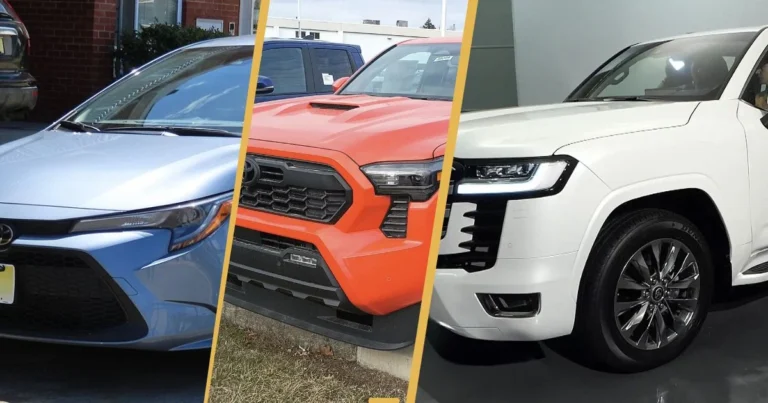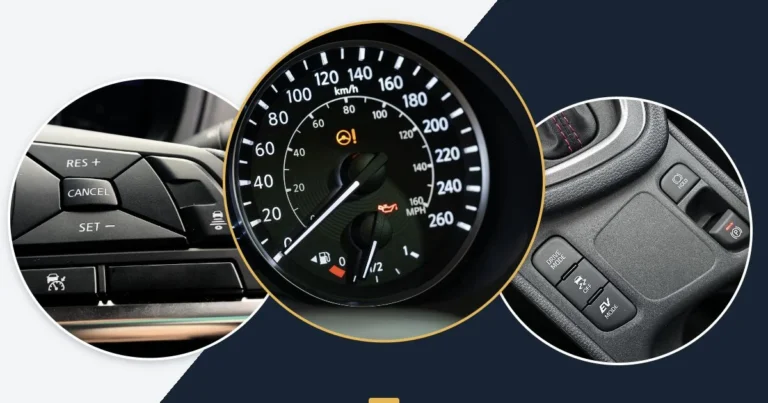
The MultiPro tailgate can do more than open, but the hitch behind it matters first.
These examples follow GMC’s U.S. 2025 Sierra 1500 guide; optional equipment must match your truck. Features vary by model year and equipment; photos illustrate the situations and may show a different vehicle.
1. Check hitch clearance before lowering the inner tailgate
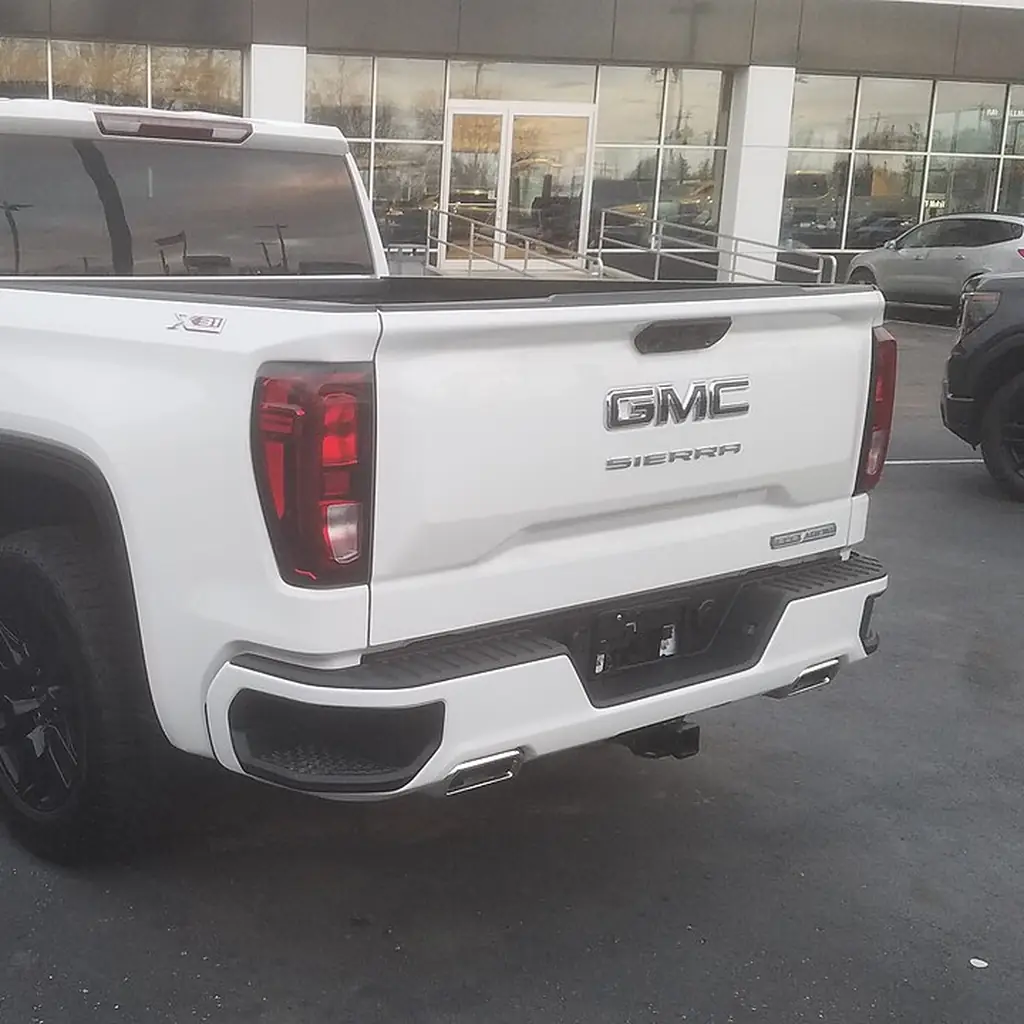
GMC warns against lowering the MultiPro inner gate with the primary gate open when a hitch ball or trailer is attached. That is the useful first discovery, before trying the tailgate’s more entertaining positions.
The 2025 Sierra 1500 quick guide describes disabling or enabling the inner gate by holding its upper button for seven seconds. Match the procedure to your truck and keep everyone clear of the moving gate. Do not assume a sensor or aftermarket hitch will prevent every possible contact.
Once the hitch situation is resolved, learn the step and handle sequence on level ground. The guide rates the full-width step at 375 pounds, but the actual truck’s instructions control your use.
A tailgate demonstration should end with every panel securely closed. The benefit is easier bed access; it disappears quickly if the first experiment dents the inner gate or leaves hardware partly deployed before driving.
2. Use the tailgate as a raised work surface

With the primary gate closed, the MultiPro inner gate can create a higher work surface on an equipped Sierra. That can be useful for a quick measurement, a packing check or paperwork without leaning over a fully lowered tailgate.
Keep the truck stationary and stay within the documented limits. Protect the surface from tools that could damage it, and do not leave small parts where they can fall into a latch or hinge.
Try the actual task before buying a separate folding table. The built-in surface may solve a short job, while a longer cooking or workshop setup may still need more space and a purpose-made stable table.
3. Use the load stop alongside proper cargo restraints
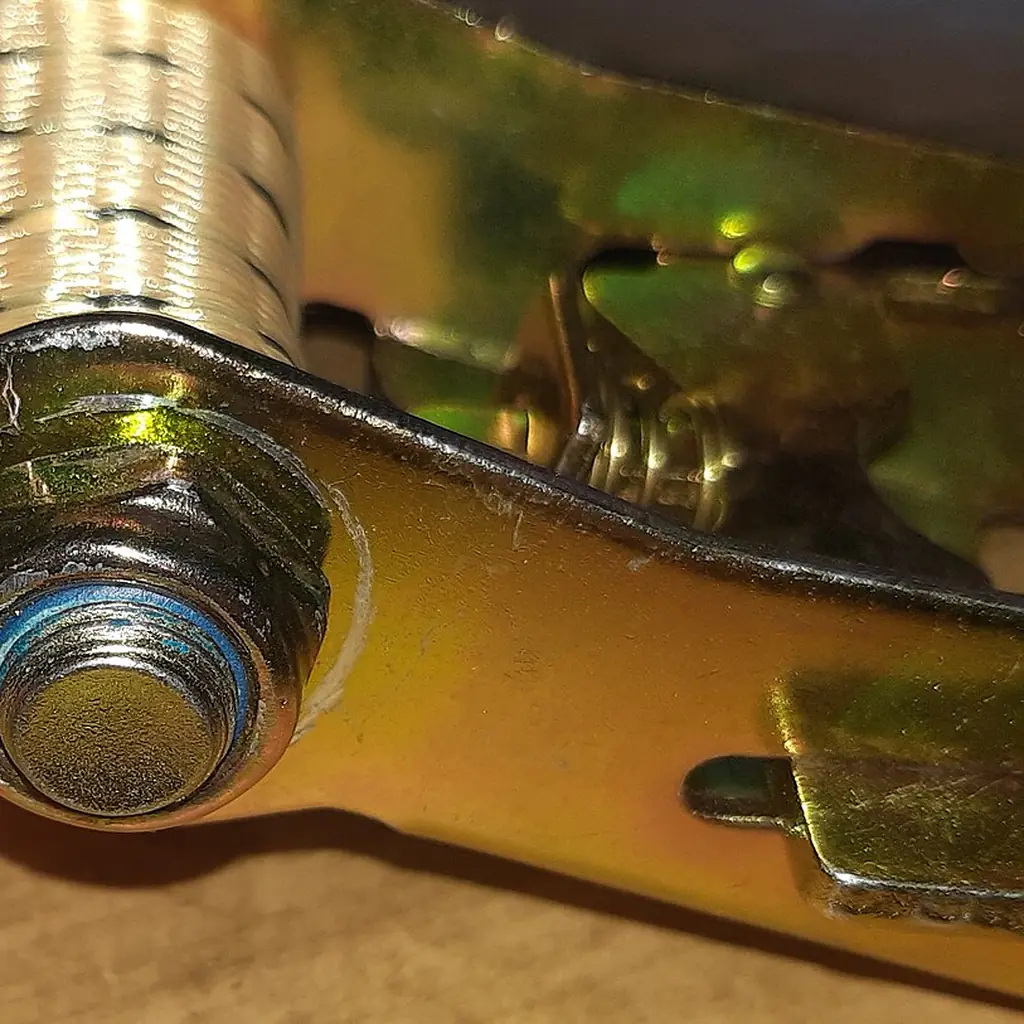
MultiPro includes load-stop arrangements for different loading positions. They can help support the intended configuration, but they do not remove the need to secure cargo properly.
Choose the position described for your load and check that every panel and stop is engaged. Use approved tie-down points and suitable restraints, with the weight distributed within the truck’s limits. Observe the rules for any projecting load.
A board that rests neatly against a stop can still move sideways or lift during travel. The practical payoff comes from combining the tailgate feature with proper restraint, not treating the raised flap as the entire cargo plan. Recheck the load after settling as appropriate.
4. Create a profile for each trailer
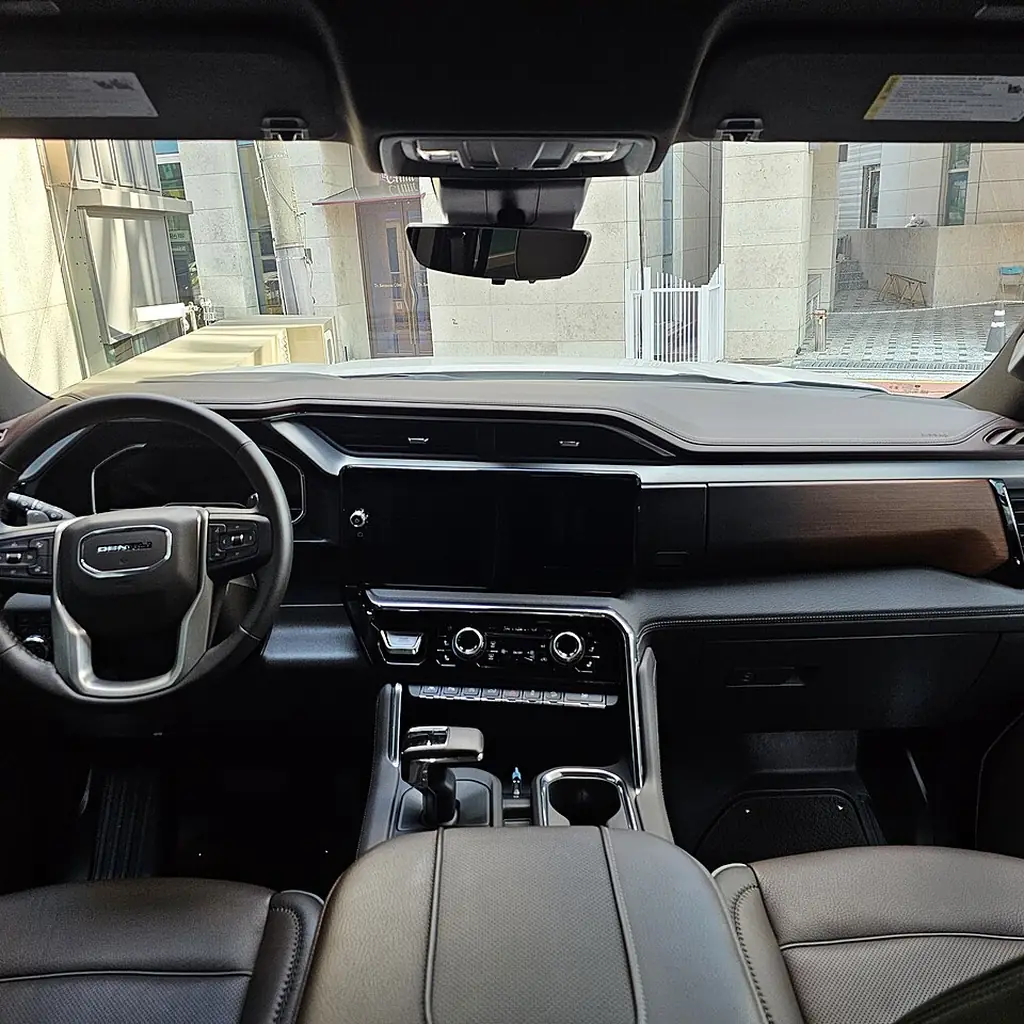
The available in-vehicle Trailering App can store trailer information and provide a departure checklist. Give each trailer a clear name so a utility trailer and a travel trailer do not become interchangeable entries.
Enter accurate information and review the checklist with the actual rig attached. A saved profile should reduce omissions, not substitute for examining the connection every time. Changes to the trailer or hitch may require updating the setup.
Our towing paperwork and weight guide keeps the wider limits in view. A digital profile does not increase capacity or settle license requirements. It is a useful place to organize the checks that still need a person to perform them.
5. Run the trailer-light test before departure
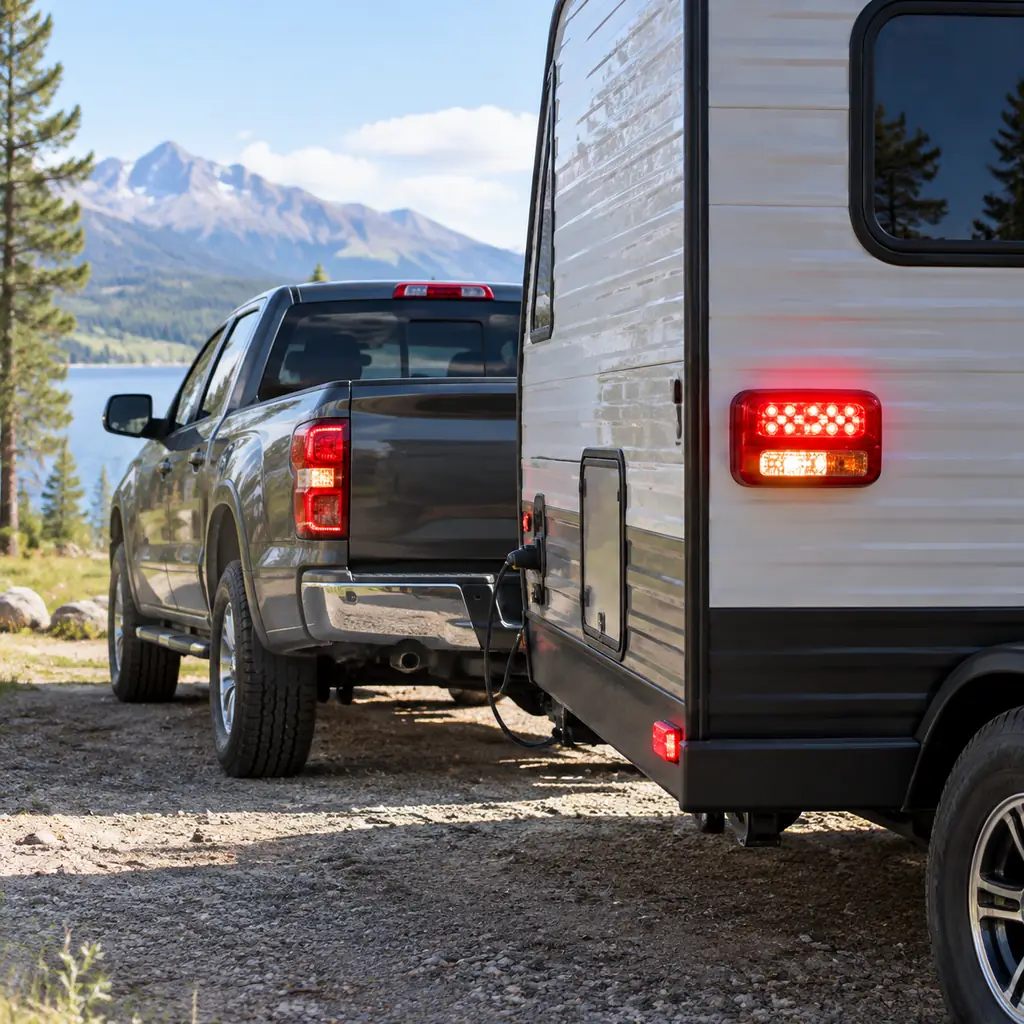
GMC’s available Trailering App includes a trailer-light test. Use it after making the electrical connection so you can observe the lamps rather than guessing that the plug is fully seated.
Check the relevant lights around the whole trailer and investigate anything missing, dim or intermittent. Keep the rig secured and follow the truck’s instructions for starting and ending the sequence.
The Ford pickup guide covers a similar convenience on equipped Ford trucks. In both cases, the software makes one task easier; it does not inspect tires, brakes, chains or the coupler. Finish those physical checks before treating the trailer as ready to leave.
6. Use the hitch lights after dark
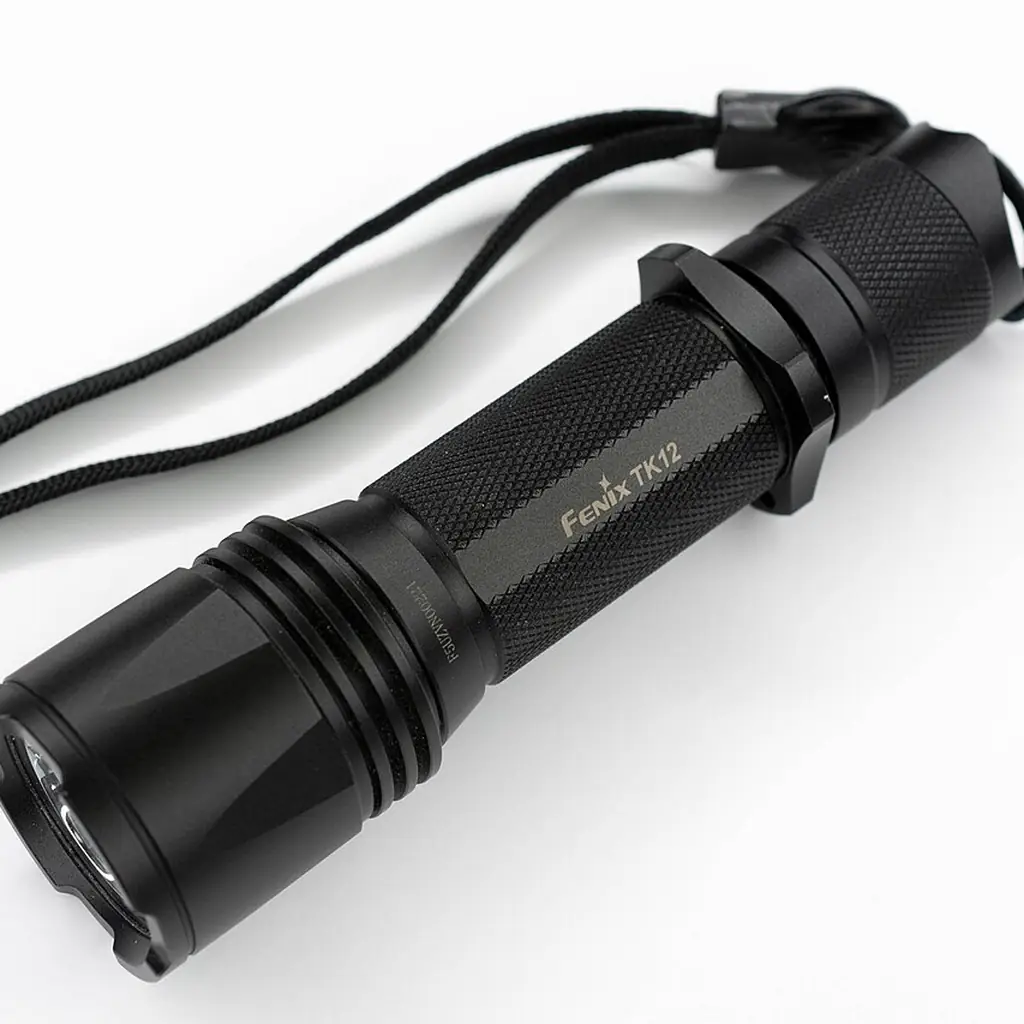
The Sierra’s fitted cargo and hitch lighting can make connection checks easier after dark. GMC’s quick guide identifies the cargo-lamp control near the exterior-light controls; the lamps available depend on equipment.
Try the control while parked and see which parts of the truck actually light up. A bed lamp may leave the coupler in shadow, while a fitted hitch lamp puts light closer to the task.
Our camping rehearsal encourages the same test before darkness makes everything slower. Keep a small flashlight as a backup and avoid aiming vehicle lighting into neighboring campsites. Once the task is complete, turn the lights off and check the truck’s status before leaving it.
7. Check the remote window-opening setting
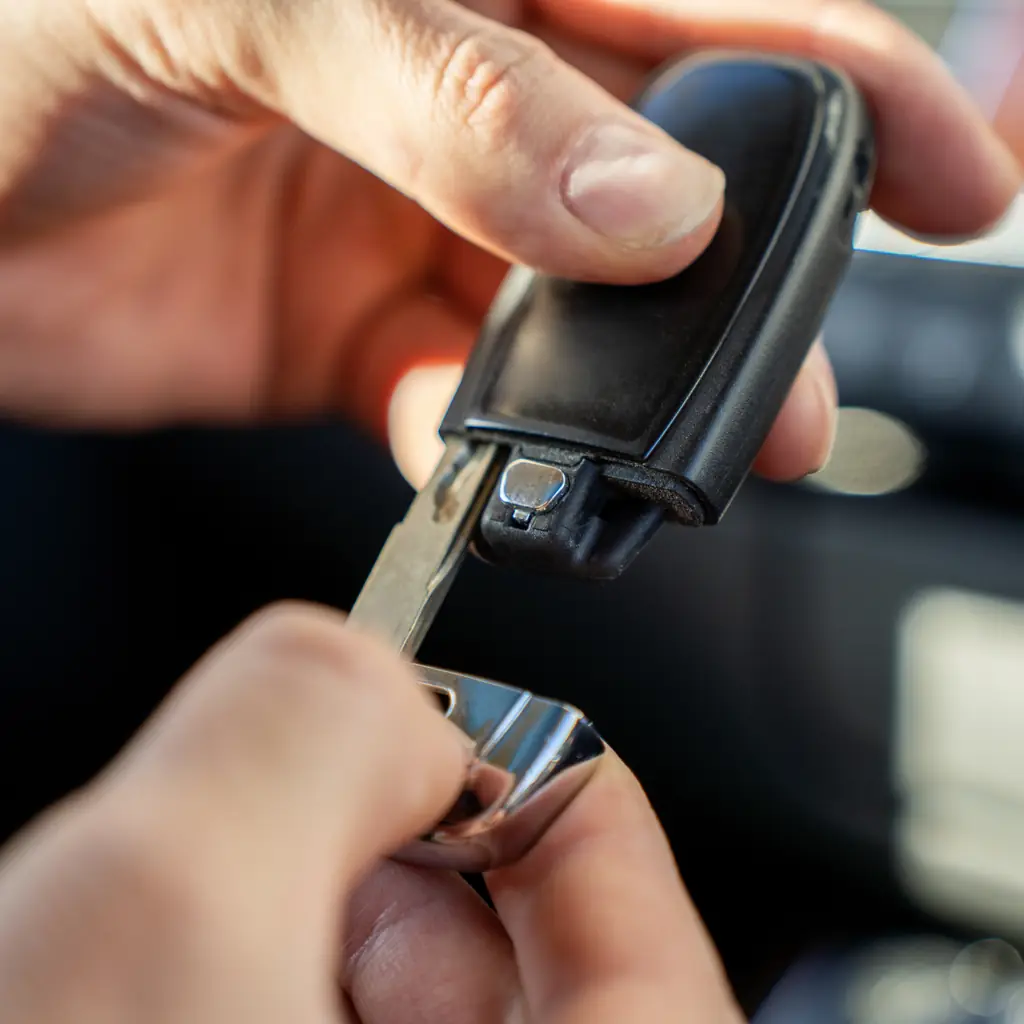
On a Sierra equipped for remote windows, the 2025 guide describes holding the unlock button until the windows open. The feature must be enabled through the vehicle’s remote-lock, unlock and start settings.
Try it with the truck in view and the area clear. Keep the fob secure and understand that an accidental sustained button press could leave windows open when weather or security makes that undesirable.
The Toyota convenience guide shows why key-fob functions should be tied to exact equipment. Do not assume the same action also closes the windows remotely. Learn the supported behavior, then decide whether it suits your normal parking routine.
8. Choose the phone that connects first
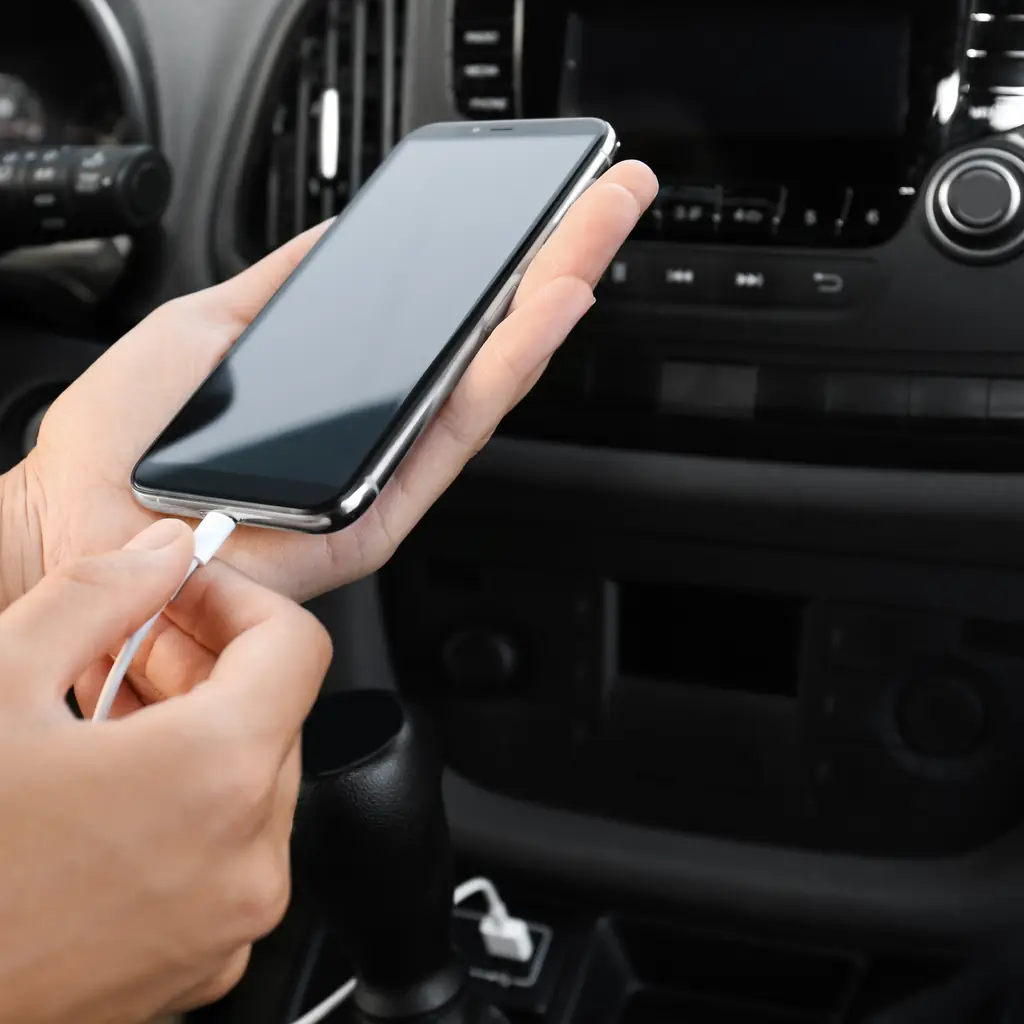
When two paired phones enter the cab, the wrong connection can interrupt the first few minutes of every drive. GMC’s infotainment guide includes a First to Connect preference on the relevant system.
Set the preferred phone through the phone settings, then test the result with both devices present. Keep the passenger’s access available if needed, but make the ordinary departure predictable.
Our Trax setup guide approaches the same connection problem in a smaller Chevrolet. Also test music and navigation audio after pairing; a phone connected for calls may not be using the interface you expect. Complete these checks while parked instead of sorting competing devices at the first intersection.
9. Save separate driving and exit seat positions
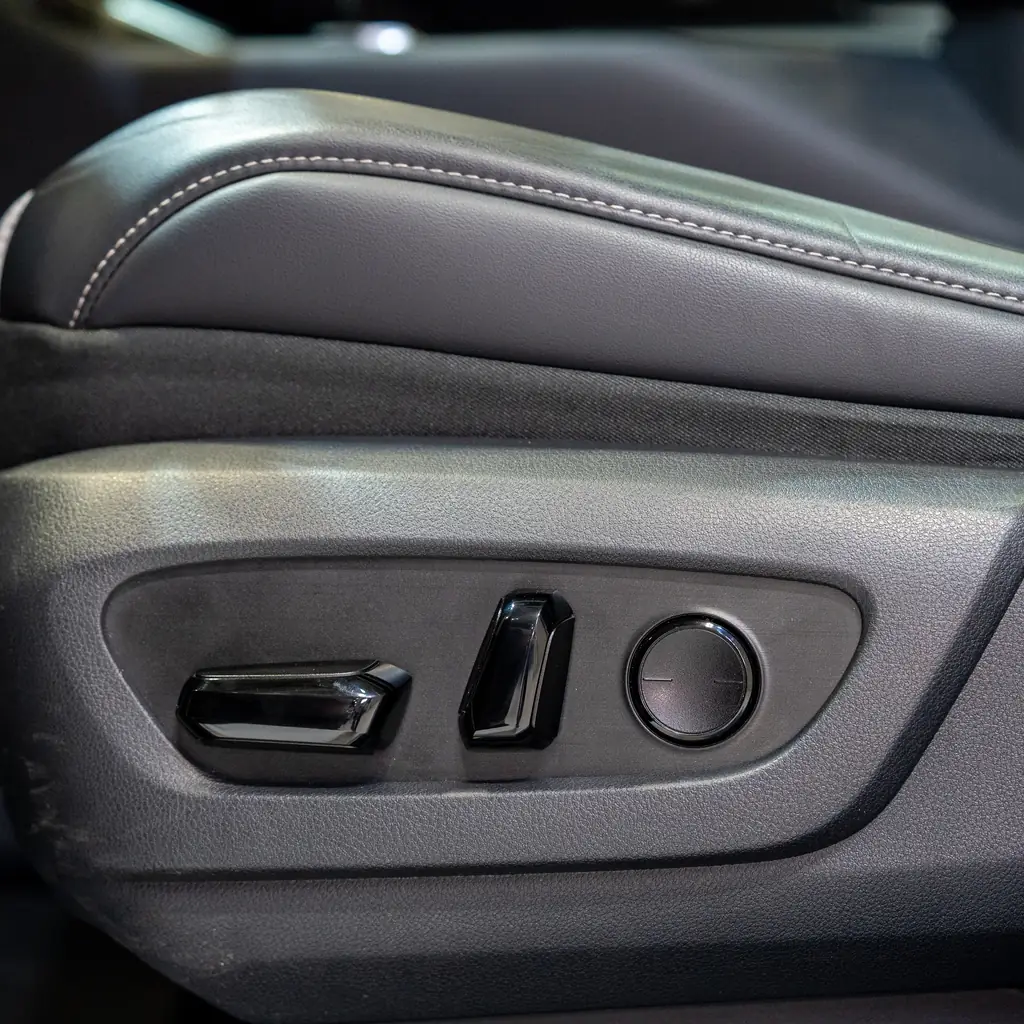
On a Sierra with seat memory, the exit setting can create more room for getting out without overwriting the driving position. GMC’s guide separates the numbered driver memories from the Exit button.
Adjust the driving position safely in Park, including fitted power mirrors, then save the intended memory. Set an exit position that clears your legs without pressing into a rear passenger or stored object. Review automatic entry and exit recall preferences.
The Grand Cherokee setup guide makes the same point about shared vehicles: a useful saved position includes the real people around it. Keep clear of moving seats and confirm the correct profile before driving.
10. Choose useful information for the driver display
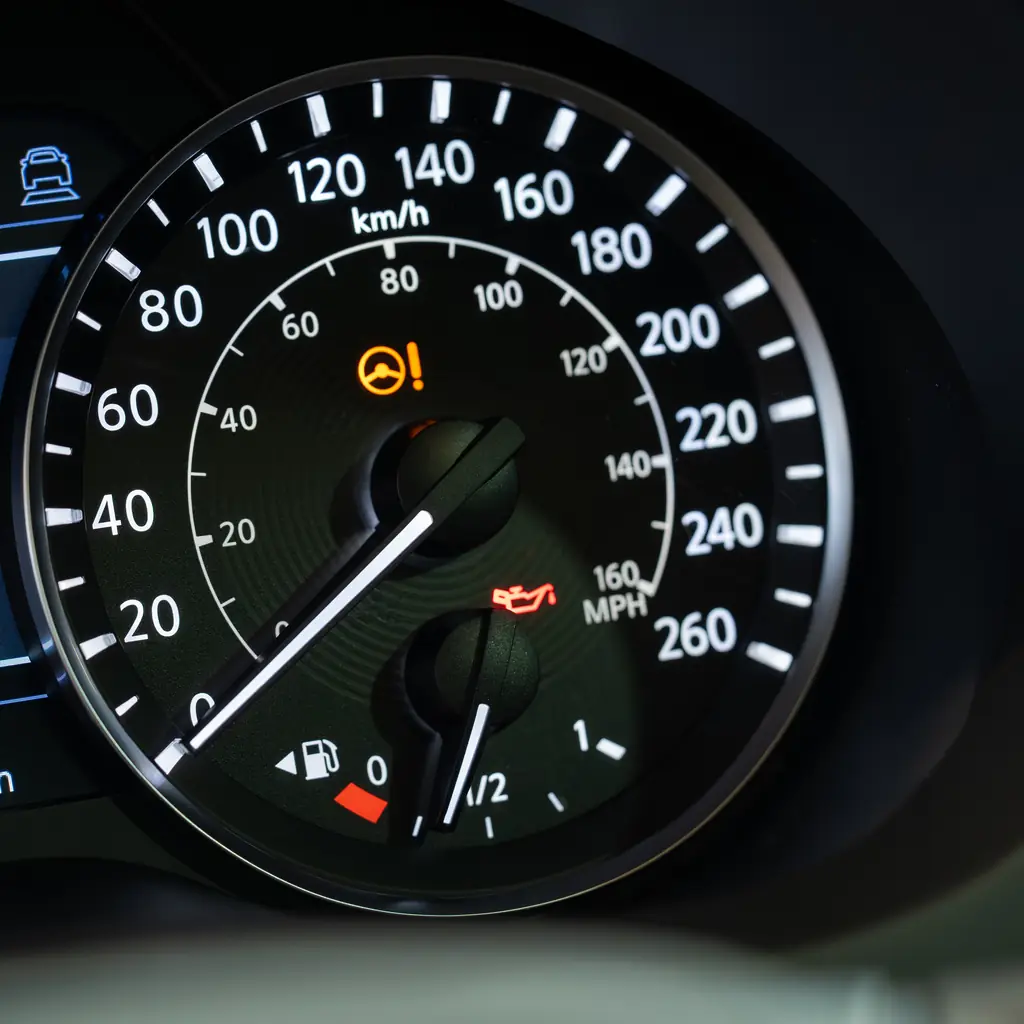
The Sierra’s Driver Information Center can show selected information pages on equipped displays. Use the available page options to keep the information you genuinely check easy to reach.
Set it up while parked. Learn the selector and reset actions before experimenting, so you do not erase a trip record accidentally. Distinguish ordinary information pages from warning messages that require attention.
Our dashboard-control guide helps prioritize what to learn first. More displayed data is not always better if it encourages prolonged screen watching. Choose a simple arrangement and review detailed figures at stops, when the information can help without competing with the road.
11. Learn how to fold the side mirrors
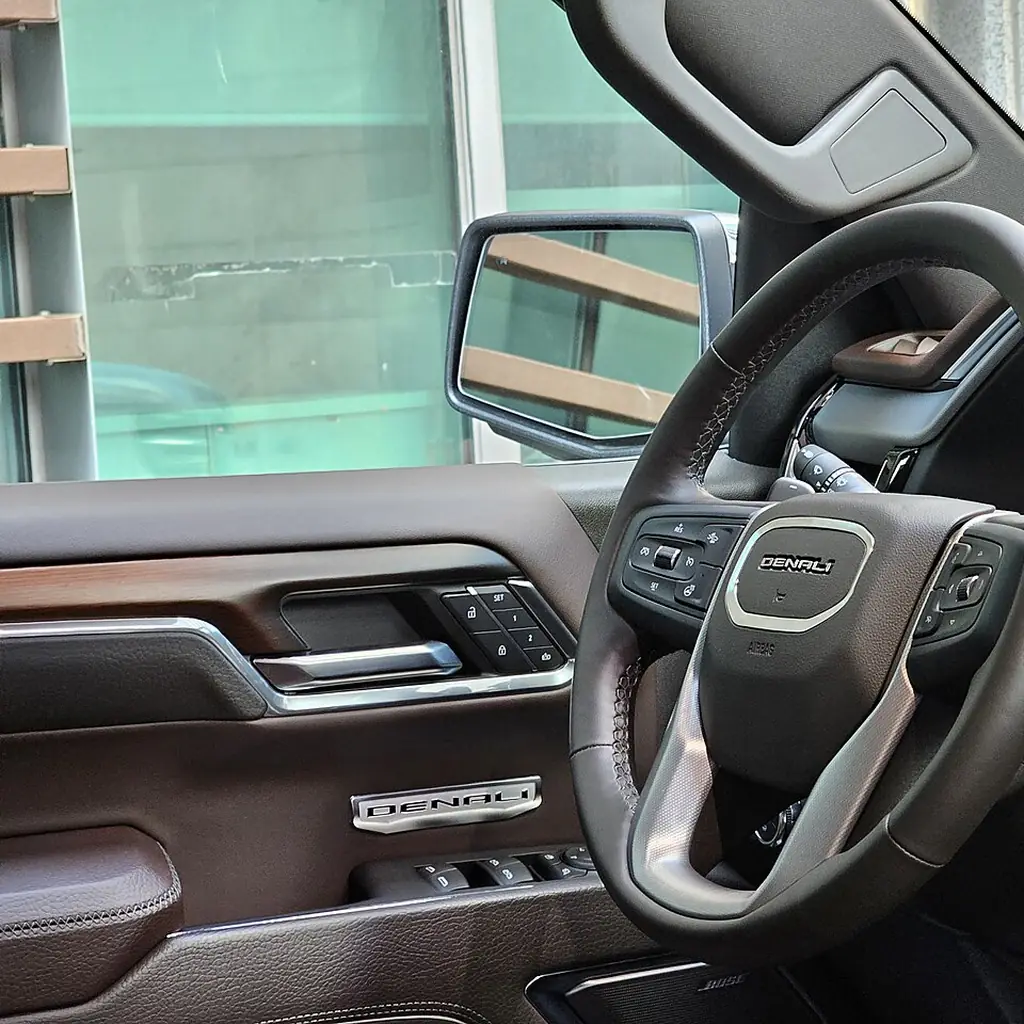
Available power-folding mirrors can make parking easier, and some Sierra configurations offer automatic folding preferences. GMC places the relevant setting under the vehicle’s comfort and convenience options on the described system.
Test the operation in open space before relying on it beside a wall. Do not force the powered mechanism or assume every towing-mirror arrangement works the same way. Restore the proper view before driving.
Folding the mirrors does not shrink the truck’s body or its cargo. Measure the actual clearance you need and avoid squeezing through an uncertain opening. A convenience feature is useful when it reduces a known problem, not when it encourages a guess.
12. Clear the wireless pad and check phone charging
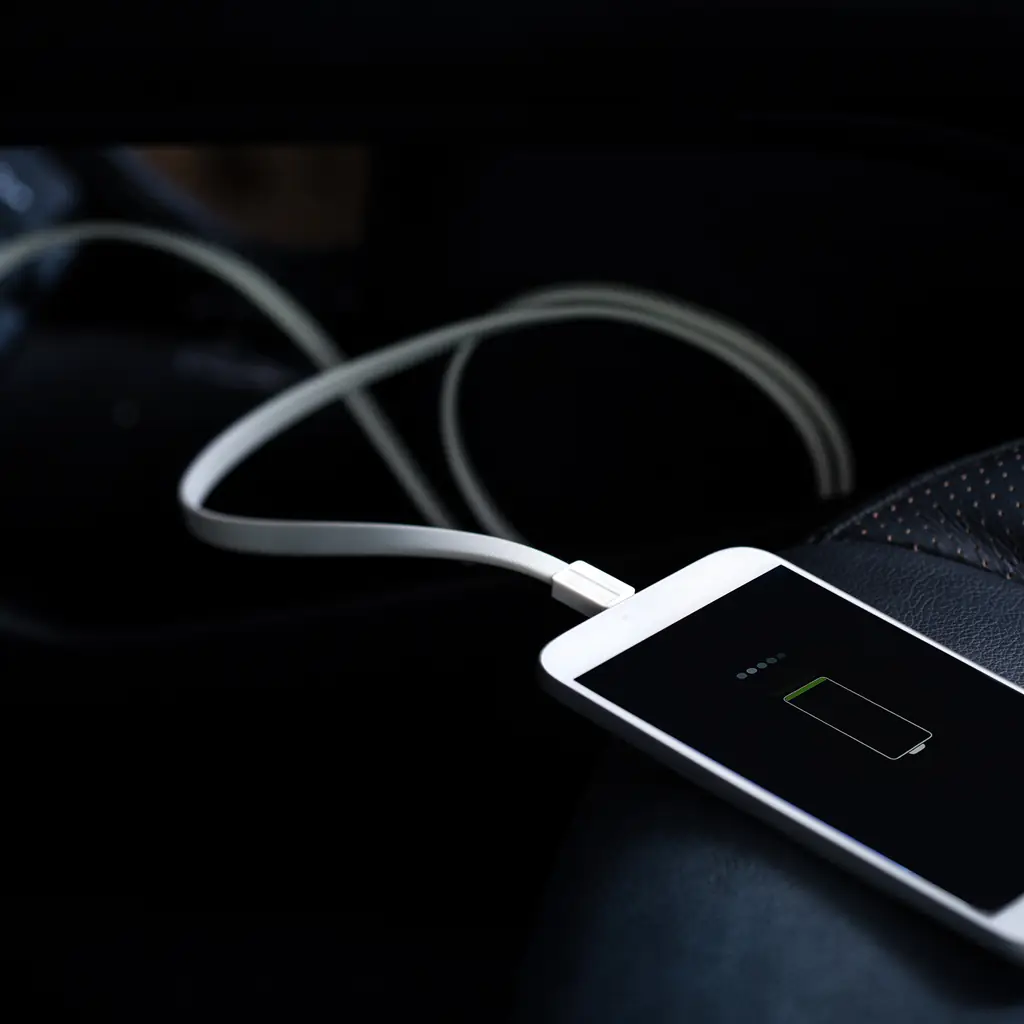
Coins, cards and a thick phone case can turn a wireless charging area into unreliable storage. GMC instructs owners to clear the pad and place a compatible phone correctly before checking the charging indication.
Try the actual phone and case combination while parked. If charging is inconsistent, use the supported troubleshooting or a suitable cable instead of moving the device repeatedly while driving. Keep other objects in a separate compartment.
A phone running maps and music may use power quickly, so verify the result during a normal trip. The convenience is not merely that the phone rests on a tidy surface; it is that the connection works without taking attention away from driving.
13. Check your truck's own towing and load ratings
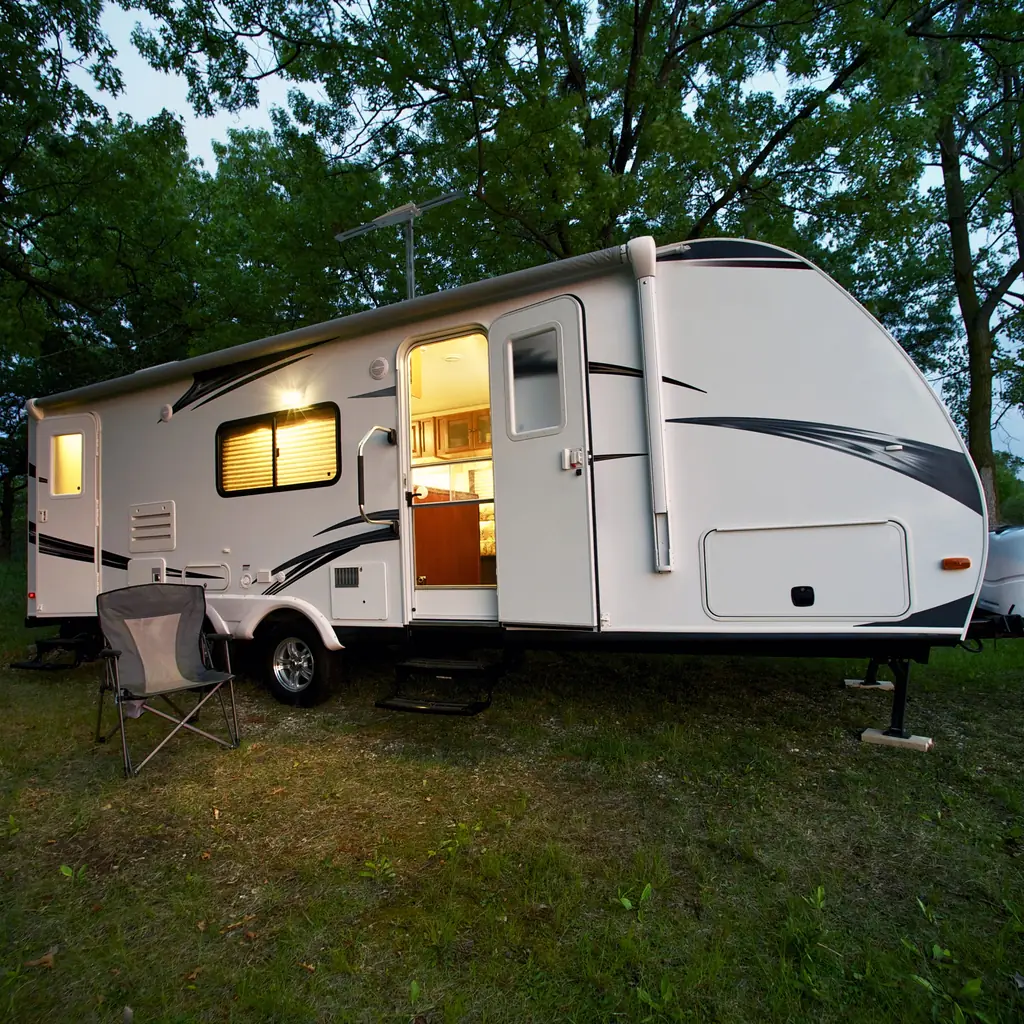
A Sierra advertisement’s maximum towing figure does not describe every Sierra. GMC identifies a vehicle-specific trailering information label on the door-pillar area for equipped trucks.
Read the ratings relevant to your actual configuration and account for passengers, accessories, cargo and trailer loads. If the figures or terminology are unclear, get qualified help before hitching a heavy trailer. A useful tailgate or camera does not increase those limits.
Save the correct information for trip planning, then build the load around it. The weekend features earn their keep when they make a suitable job easier. They cannot turn an overloaded truck into the version pictured at the top of a towing brochure.
Sources & photo credits
Sources & references Manuals and supporting information
Photo credits Photographers, sources and licences
Other photography
- Image 4: Photo: Damian B Oh, CC BY-SA 4.0. Cropped to square and converted to WebP.
- Image 11: Photo: Damian B Oh, CC BY-SA 4.0. Cropped to square and converted to WebP.
- Image 1: 2023 GMC Sierra rear view.jpg by Deathpallie325, CC BY-SA 4.0. Cropped and resized.
- Image 2: A carpenter creating measurements.jpg by Rwebogora, CC BY-SA 4.0. Cropped and resized.
Other photography
- Image 3: Spanngurt.jpg by HobbyAstronaut, CC0 1.0. Cropped and resized.
- Image 6: Flashlight (51852112087).jpg by Benjamin White, CC BY-SA 2.0. Cropped and resized.